Submitting input from a form to a database table
Back to the tutorials list
 Introduction
In FrontPage, you had the ability to make an html form, Right-Click on it, and
invoke a Wizard that would allow you to create a database and send the form data
to a database table. While you can do the same in Expression, the html
forms are notoriously vulnerable to spam robots, and a far better solution is to
use ASP.NET forms to send data to a database, since the form validation controls
can be used creatively to prevent robot access.
This tutorial provides the step-by-step process to send your data to a database
table
using the ASP.NET controls. As in all the tutorials on this website, we will use
a SQLExpress database.
If you did not do the first free tutorial on this site (The
Introduction to VWD Express), then look at it now, and follow along the
instructions to open VWD Express and create a new asp.net website with the name MyTutorialsWebsite.
Also create a database with the name MyTutorialsDatabase.mdf in the App_Data folder
Then, with that website open in VWD, proceed with this tutorial.
If you already have and are familiar with VWD, then go ahead and create your
MyTutorialsWebsite asp.net website containing MyTutorialsDatabase.mdf in the App_Data
folder.
Create the table
that will be receiving the data from your form
First, you need to create the database
table which will be receiving the form input.
In the Database Explorer, right click on Tables, select Add New Table, which will
cause the design view of your new table to open in a new tab. Fill in the
following fields for the table (be sure to create all these fields as some will
be used in later tutorials):
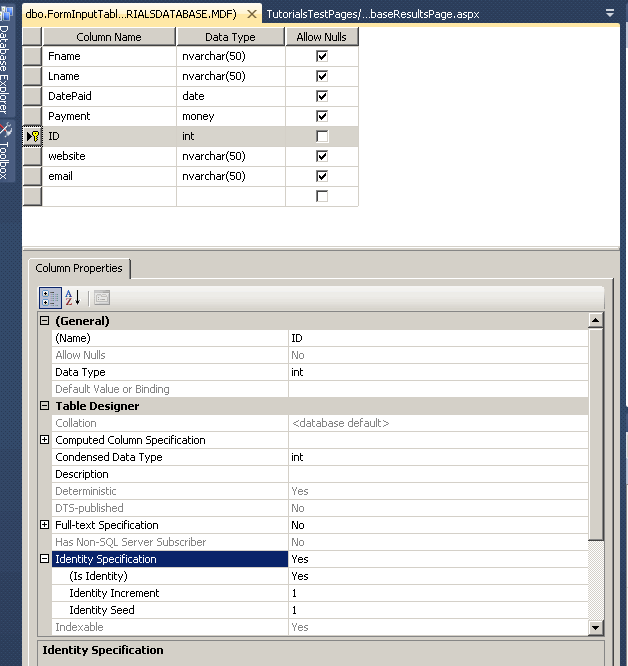
"FName" of type: "NVarChar(50)" (creates a field that accepts up
to 50 text characters)
"LName" of type "NVarChar(50)"
"Phone" of type "NVarChar(50)"
"Email" of type "NVarChar(50)"
"Payment" of type "Money"
"DatePaid" of type "Date"
"Website" of type "NVarChar(50)"
"ID" of type "Integer", and in the lower window scroll down to the
Identity Specification section, click the little +, and set (Is Identity) to yes.
Then highlight the ID row, and click the little
gold key icon up in the top menu to set ID as the
primary key for the table. Click the save icon and name the table
"FormInputTable".
When you are done, the table design should look similar to this:
Put some data in
the table to make sure it works
Now, in
the Database Explorer, right click on the FormInputTable and select Show Table
Data. Fill in a few records (use the TAB key to move along) so that the
table has some data in it. When you get to the date column add dates using
formats like
5/8/2012 or 10/31/12.
For the Payment, just use numbers like 578 or 3000, not any $ signs or commas.
For the website enter terms like
www.somesite.com (do not include the
"http://" in the site address)..
The reason for this is that we will be using such addressess in a later
tutorial. If you were setting up a page for a user to enter data, you would need
to add instructions on the exact format you wanted used.
Do not try to input the ID numbers, those are automatically added by the
database.
If you run into trouble due to entering data in the wrong format, the Escape key
will back you out of trouble. Enter a few records (keep using the tab key to
move along) to make sure your table works.
When you are done, your table should look something like (your ID numbers may be
different):

Now we are ready to make a webpage where we can submit data from a form into
this database.
Make a webpage
to input records to the FormInputTable
1. In the Solution Explorer pane, right-click on your website name (at the very
top), click Add New Item, highlight Web Form, highlight Visual Basic as the code
choice at the upper left, check the box at lower right to Place Code in Separate
File, change the Default name offered to SubmitForm.aspx, and click the Add
button. This should open your new blank page in a new tab.
2. Now drag a FormView control onto the page from the data
section of the toolbox (if
the toolbox is not showing, you can find it in the View menu). With the Formview
highlighted, in the Properties pane, change the ID from FormView1 to something
sensible like FVInputForm
3. Important step: In the properties pane for the FormView, go to DefaultMode and
from the dropdown list, change "ReadOnly" to "Insert" which causes the FormView to
automatically use the InsertItemTemplate
4. Click on the expander arrow at top right of the control and select
"new data source" from the Choose Data Source window, click on the SQL database
icon, and name the new sqldatasource "SDSFormInput"
5. For a connection string, select MyTutorialsDatabase.mdf, save the
connection string with the name MyTutorialsDatabaseConnectionString, and click
Next
6. In the "Specify columns from a table or view" section you should
see the fields from your table. Check all the boxes: Fname, Lname, Email, DatePaid,
Payment, ID, and Website. Click the Order By button and order by LName, then by FName, click
OK. Click the Advanced button and check the box to Generate Insert Update and
Delete Statements.
Click
OK, Next, and Finish
You are done. Save, and preview the file in Browser. When you enter data into
the fields and hit insert, new records will be entered into your database table. Go
back to your Database Explorer, right click on the table and select Show Table
Data to see the new record. You may have to click
the little red exclamation point icon to update the query to show the latest
additions. When you do this, the new record should show in the database table.
Leave some
records in the table
Using your browser, add a few records before leaving this tutorial. Make sure to
have at least one record for John Smith. We will look for that in a later
tutorial.
If you have a GridView on another page set up to view the database records, you
will see the new record showing up there. To see how to set up such a GridView
display of database results, see
this tutorial
.